Overview
Use this helper at the beginning of a NINA Advanced Sequencer workflow if PWI4 should be prepared before the normal imaging sequence starts.
The helper checks http://localhost:8220/status. If PWI4 already reports mount.is_connected=true and both axes are enabled, it exits without connecting, enabling or homing again.
Quick Start
Download pwi4_connect_enable_home_2026-05-26.1.zip.
Extract the batch files and PowerShell script into one local folder.
Use the home batch or the no-home batch as the external program.
Place it before sequence steps that depend on a ready PWI4 mount.
If PWI4 already reports mount.is_connected=true and both axes are enabled, the helper exits intentionally and does not start homing again.
Downloads
ZIP package
pwi4_connect_enable_home_2026-05-26.1.zipDownload package with the home batch, the no-home batch, the PowerShell script and a README file. Extract all files into one local folder.
Home batch
pwi4_connect_enable_home.batChoose this file as the external program in NINA. It starts the PowerShell script from the same folder.
No-home batch
pwi4_connect_enable_no_home.batChoose this file if NINA should connect and enable the mount but not start PWI4 homing.
Advanced example
pwi4_connect_enable_advanced_example.batExample batch for a PWI4 API running on another computer or another port. Edit the URL before using it.
PowerShell script
pwi4_connect_enable_home.ps1Keep this file in the same folder as the batch file. It contains the status check and PWI4 API calls.
Use the ZIP package, or download the needed individual files and place them together in one local folder on the Windows computer that runs NINA and PWI4.
NINA Setup
- Save
pwi4_connect_enable_home.bat,pwi4_connect_enable_no_home.batandpwi4_connect_enable_home.ps1in the same folder. - In NINA Advanced Sequencer, add an instruction that runs an external program or script near the beginning of the sequence.
- Select
pwi4_connect_enable_home.batfor connect, enable and home, orpwi4_connect_enable_no_home.batfor connect and enable only. - No arguments are needed when PWI4 runs on the same computer with the default API port
8220. - Place the instruction before the normal NINA connection or observing steps that depend on the mount being ready.
NINA Screenshot Placement
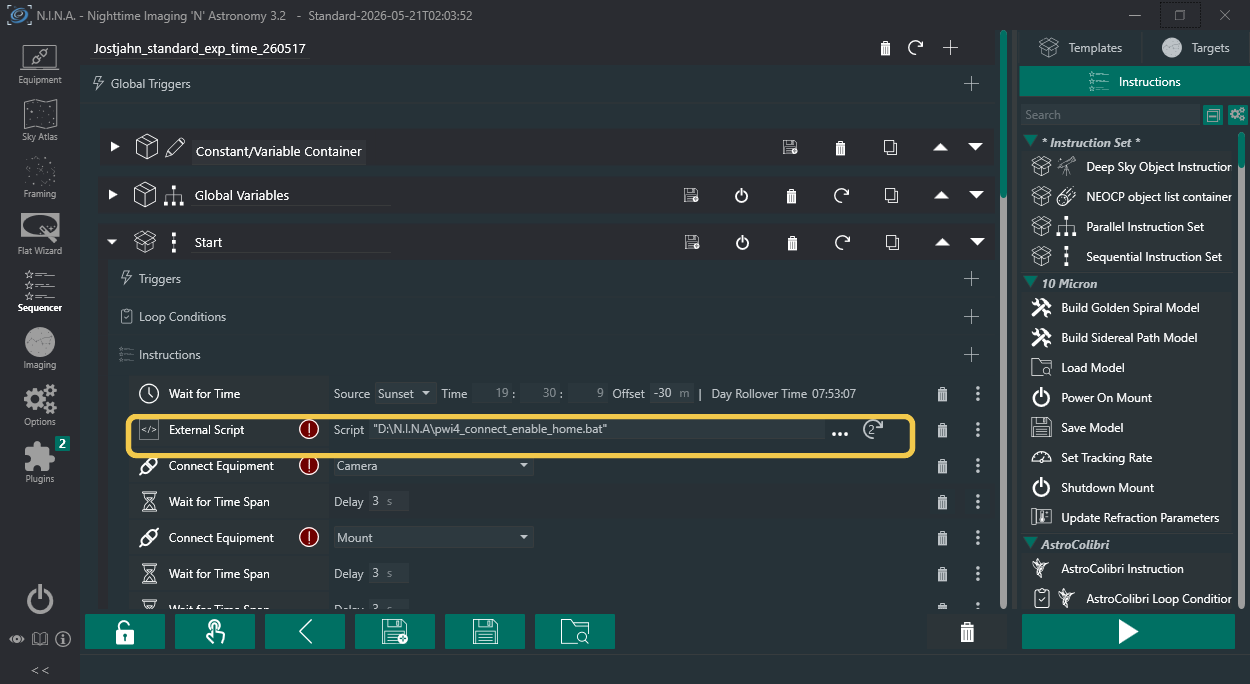
Requirements
Computer
- Windows PC running NINA.
- PowerShell available.
- The helper batch files and PowerShell script stored in one local folder.
PWI4
- PlaneWave PWI4 running or starting before the helper is called.
- PWI4 API reachable at
http://localhost:8220beforeTimeoutSecondsexpires. - Mount and site setup completed in PWI4.
NINA
- Advanced Sequencer or another workflow step that can run an external program.
- The batch file selected as the external program.
- No command-line arguments needed for the default local PWI4 setup.
What the Helper Does
/status/mount/connect- The selected batch file starts PowerShell with
pwi4_connect_enable_home.ps1. - The script waits up to
TimeoutSecondsuntil PWI4 status is reachable at/status. - If the mount is already connected and both axes are enabled, the script exits immediately and does not home the mount.
- If the mount is not connected or an axis is not enabled, the home variant calls the PWI4 API commands below.
/mount/connect
/mount/enable?axis=0
/mount/enable?axis=1
/mount/find_home
At startup, the script treats a temporarily unreachable PWI4 API as a wait condition, not an immediate failure. This covers cases where NINA starts the external script while PWI4 is still launching its HTTP server on port 8220.
Axis 0 is the RA/Azimuth axis. Axis 1 is the DEC/Altitude axis. The script verifies RA/Azimuth before enabling DEC/Altitude. If either axis does not become enabled, or if PWI4 does not expose the expected axis status fields, it disconnects, reconnects, waits briefly and repeats the complete RA/DEC enable sequence. The default is three total attempts: the first attempt plus two reconnect retries. After the home command, the script waits until PWI4 no longer reports a slew or until the timeout is reached.
The no-home batch calls the same script with -SkipHome. In that mode, the script stops after both axes are enabled and does not call /mount/find_home.
For a syntax and logging test without real PWI4 movement, run the PowerShell script with -DryRun.
powershell.exe -NoProfile -ExecutionPolicy Bypass -File ".\pwi4_connect_enable_home.ps1" -DryRunAdvanced Configuration
Different PWI4 computer
Call the PowerShell script with a custom base URL if PWI4 runs on another reachable computer.
powershell.exe -NoProfile -ExecutionPolicy Bypass -File ".\pwi4_connect_enable_home.ps1" -BaseUrl "http://192.168.1.20:8220"You can also use pwi4_connect_enable_advanced_example.bat as a template and edit PWI4_BASE_URL.
Longer timeout
Increase the timeout if PWI4 needs longer to expose its API, or if connecting, enabling or homing takes longer at your mount.
powershell.exe -NoProfile -ExecutionPolicy Bypass -File ".\pwi4_connect_enable_home.ps1" -TimeoutSeconds 180Axis recovery
Default recovery timing is 20 seconds per axis, 5 seconds after each enable command, 8 seconds after disconnect and 10 seconds before repeating RA then DEC. Increase the per-axis wait or retry count if an axis needs longer to become green.
powershell.exe -NoProfile -ExecutionPolicy Bypass -File ".\pwi4_connect_enable_home.ps1" -AxisTimeoutSeconds 180 -AxisRetryCount 2Skip homing
Use the no-home batch or call the script directly with -SkipHome.
powershell.exe -NoProfile -ExecutionPolicy Bypass -File ".\pwi4_connect_enable_home.ps1" -SkipHomeTroubleshooting
PWI4 API not reachable
The helper waits up to TimeoutSeconds for http://localhost:8220/status. If it still fails, start PWI4 first and check that the URL opens on the same computer.
PowerShell is blocked
The batch file starts PowerShell with -ExecutionPolicy Bypass for this run. If Windows still blocks it, check local security policy or antivirus settings.
NINA red exclamation marks
Red marks can appear while NINA has not yet validated equipment, script paths or sequence state. For the External Script line, check that the Script field points to the extracted local batch file.
Nothing seems to happen
If PWI4 already reports mount.is_connected=true and both axes are enabled, the script exits intentionally and does not home again. Check pwi4_connect_enable_home_launcher.log to confirm NINA started the batch, then check pwi4_connect_enable_home.log for the PowerShell run.
RA/Azimuth does not turn green
The script waits for RA/Azimuth axis 0 before it enables DEC/Altitude or starts home. If an axis stays disabled, it disconnects, reconnects, waits briefly and repeats RA then DEC. The default is three total attempts. If all attempts fail, the run stops with a timeout and the log shows the last axis status values.
No-home variant does not home
This is intentional. Use pwi4_connect_enable_home.bat if the sequence should also start PWI4 homing.
Where is the log?
The script writes pwi4_connect_enable_home.log into the same folder as the script and a timestamped diagnostic copy under the logs folder. The batch files also write pwi4_connect_enable_home_launcher.log next to the script.
Error Codes
0 Success
The script completed successfully, or PWI4 already reported that the mount was connected and no action was needed.
1 Script or API error
PWI4 was not reachable, returned an error, timed out, or another script error occurred. Check pwi4_connect_enable_home.log and the newest file in the logs folder.
2 Advanced example not configured
The advanced example batch still contains PWI4_BASE_URL=EDIT_ME. Edit the batch before using it in NINA.
FAQ
Can I inspect the files first?
Yes. Use View BAT and View PS1 before downloading or running the helper.
Why can SmartScreen or antivirus warn?
The helper is a small unsigned batch and PowerShell download. Inspect the code and verify the SHA256 checksums if your security tools warn.
Does it replace normal PWI4 setup?
No. PWI4, the mount model, limits, site data and normal hardware setup must already be configured correctly in PWI4.
Which batch file should I use?
Use the home batch for connect, enable and home. Use the no-home batch when homing should be handled separately.
Can PWI4 run on another computer?
Yes, if the API is reachable. Use -BaseUrl in a custom batch file or direct PowerShell call.
What is the current script version?
The PowerShell script reports 2026-05-26.1 in the local log when it starts.
PWI4 and Mount Manual
PlaneWave provides the PWI4 User Manual. For mount-specific behavior, limits, homing procedure details and safety requirements, refer to the manual for the respective mount model.
Security and Inspection
The helper is a plain batch file plus a plain PowerShell script. You can inspect both files in the browser before running them: View BAT and View PS1.
The ZIP download contains only pwi4_connect_enable_home.bat, pwi4_connect_enable_no_home.bat, pwi4_connect_enable_advanced_example.bat, pwi4_connect_enable_home.ps1 and README.txt.
SHA256 Checksums
Version and Changelog
Startup now waits up to TimeoutSeconds for the PWI4 /status API before treating the run as failed. This prevents NINA from failing the helper immediately when PWI4 is still starting its HTTP API. Status polling during later wait phases also treats temporary API dropouts as warnings until the configured timeout expires, and shared log writes are more tolerant of closely spaced helper starts.
Added detailed per-run diagnostics: a current log, timestamped logs under logs, launcher logging from the batch files, raw PWI4 API responses, HTTP status, elapsed times, environment details and full parsed status snapshots. The script now only exits early when PWI4 is connected and both axes are confirmed enabled; missing axis status fields trigger the enable/recovery flow and are captured in the log.
Download links now also start the browser download when the user right-clicks a download button. Normal navigation links and copy buttons are unchanged.
Changed the default per-axis wait from 120s to 20s. The bounded recovery behavior remains three total attempts: the first RA/DEC attempt plus two disconnect/reconnect retries.
Script version 2026-05-22.2 adds bounded axis recovery: if RA/Azimuth or DEC/Altitude does not become enabled, the helper disconnects, reconnects, waits and repeats the complete RA/DEC enable sequence before failing safely. The default is now three total attempts.
Added top download action, HTML README page, status flow, advanced example batch, script version 2026-05-21.3, README file, copy buttons, FAQ, the no-home batch variant, browser-based script views, Quick Start, requirements, troubleshooting, checksums, advanced configuration and a NINA placement example. Version 2026-05-21.3 verifies RA/Azimuth before enabling DEC/Altitude and reduces repeated status-log noise.
Published the connect, enable and home helper for NINA and PlaneWave PWI4.
Safety Notes
Before first live run
- Confirm that roof or dome movement is safe.
- Confirm that telescope cables have enough slack.
- Confirm that no person or equipment is inside the mount movement area.
Before unattended use
- Test once with
-DryRun. - Test once while watching PWI4 and the mount.
- Review the local log file after the first successful run.
A real run can move the mount. Confirm that the telescope, cabling, roof or dome and nearby equipment are clear before running the sequence.
localhost:8220 always means the computer on which NINA starts the batch file. PWI4 must be running there, and the PWI4 API must be reachable. If PWI4 runs on another computer or port, call the PowerShell script with a different -BaseUrl or adapt the batch file accordingly.